- New & Updated Professions
- Claim your page
- Manage your page controls
- Manage your images
- Manage your videos
- Manage your filmography
- Manage your professions
- How do I remove my age / birthyear?
- Manage your personal details
- Manage your performer profile & credentials
- Setting your vanity URL & other external websites
- Manage your Client List with Shared Editing
- Where and how will my Featured Images be displayed?
- Who is using my name on IMDb?
- Verified affiliations on IMDbPro
- IMDb Community Guidelines
Manage your Client List with Shared Editing
Updated 15-September-2026
Shared page management requires an IMDbPro Premium Subscription for both client and representative. Learn more on the IMDbPro Subscription comparison page.
IMDbPro empowers talent representatives with tools to manage their clients' online presence. Whether you're a talent agent, manager, publicist, or legal representative, you can build your client list to view important details about your clients, identify gaps in their IMDbPro profiles, and monitor their popularity among IMDb users.
Shared Editing
- What are shared editing permissions?
- How do I start co-managing my client’s pages with shared editing?
- As a client, how can I manage shared editing permissions for my page?
- Do I need to be an IMDbPro member in order to use shared editing?
- Does my client need to be an IMDbPro member in order for me to use shared editing?
- Is there any limit to the number of pages that I can co-manage via shared editing?
- As a client, is there a limit to the number of representatives that I can manage my page via shared editing?
- Can I enable shared editing for someone I do not represent?
- Can I delegate shared editing access for someone else to help co-manage my client’s page?
- If my client cancels their IMDbPro membership, are the edits that I made to my client's page removed?
- If I cancel my membership, are the edits that I made to my client's page removed?
- If I cancel my membership and then renew, do I automatically get my editing permission re-enabled?
- Can I upload and manage demo reels for my client?
- Can I access shared editing via the IMDbPro mobile website or IMDbPro app?
- Will I still have access to Client Scorecard?
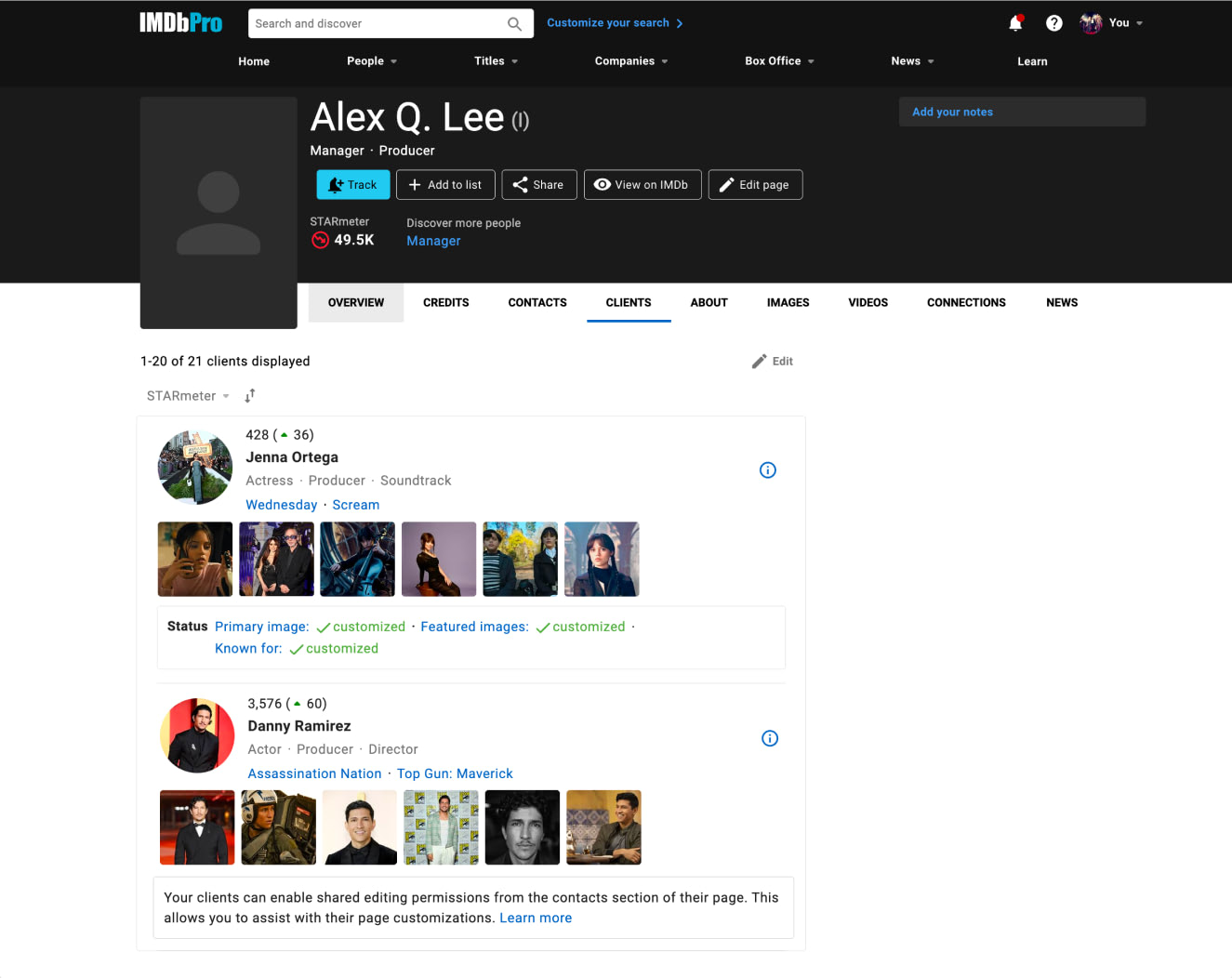
Sort your list
Use the sort filters to navigate through your client list. Name filtering allows you to sort in alphabetical or reverse alphabetical order, quickly locating specific clients. STARmeter allows you to sort based on which of your clients are most popular with IMDb users with their current STARmeter ranking.
Client list tools
The links below the primary image help keep you informed of updates and match your client with the best opportunity. Track manages the type of information you receive regarding this client in your Notifications Inbox. Add to list allows you to organize your clients by project or availability.
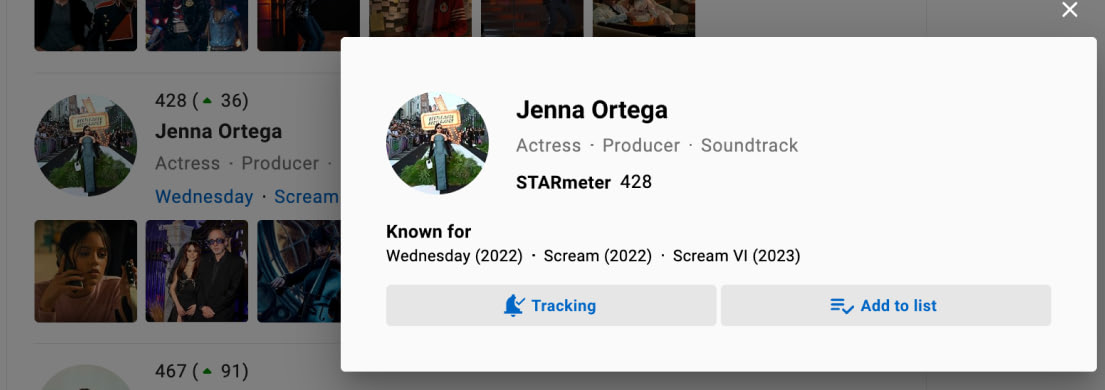
Recommended edits
Use the checklist to ensure your client's page is not missing any important content. The check will appear for Featured images, Primary image and Known for titles, the check indicates that the client has used IMDbPro tools to select these.
What are shared editing permissions?
Shared Editing lets your representatives make changes to your IMDb page on your behalf. Representatives with IMDbPro Premium memberships who are listed in your Contacts can use IMDbPro's page customization tools - including uploading images, setting primary and featured images, and editing Known for titles - when you enable Shared Editing.
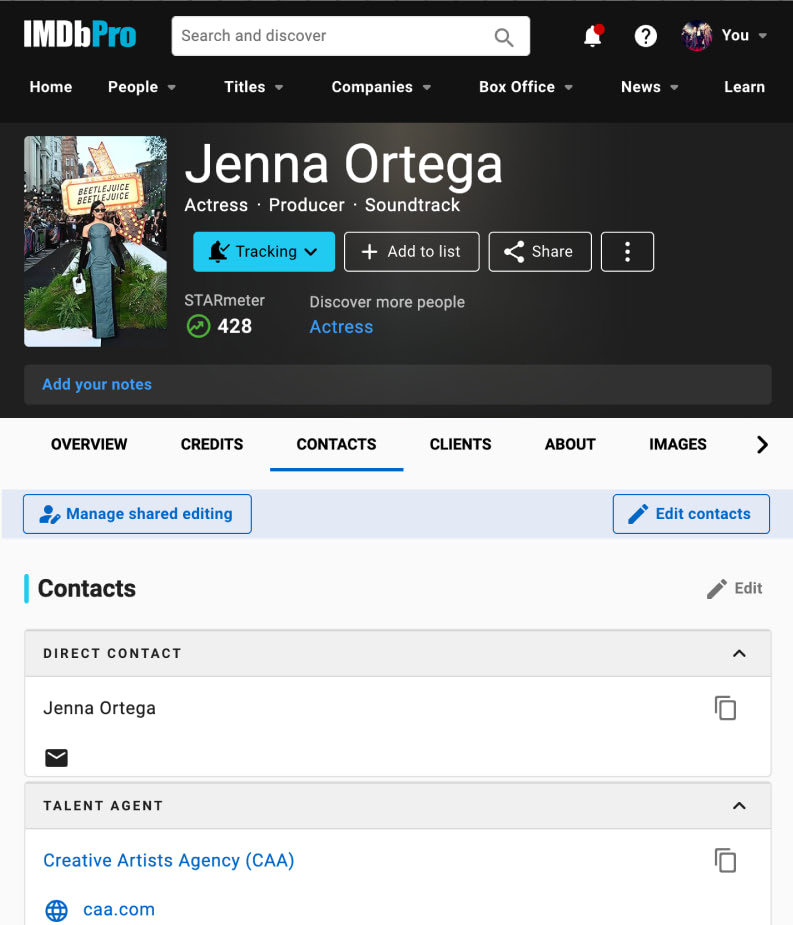
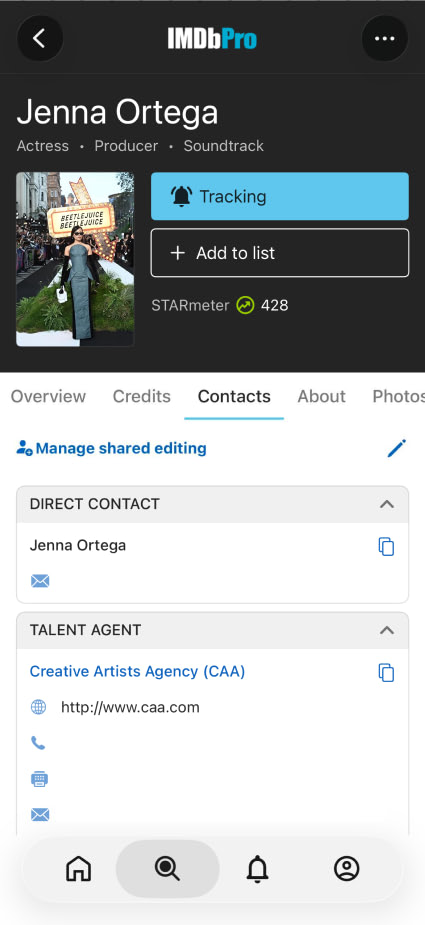
You control access with a single toggle in your Shared Editing settings - look out for Manage shared editing buttons on IMDbPro Desktop and the IMDbPro mobile app.
How do I start co-managing my client's page with shared editing?
If you're a representative with an active IMDbPro Premium membership and you're listed in your client's Contacts, you can co-manage their page when they enable Shared Editing.
Your client controls Shared Editing from their settings. When they turn it on, you'll automatically have access - no invitation or request needed.
To check your access status, visit your client list on your claimed IMDbPro page. Clients who have enabled Shared Editing will show "Allowed" status, and you'll see links to edit their images and Known for titles directly from your client list.
As a client, how can I manage shared editing permissions for my page?
If you have an active IMDbPro Premium membership and have claimed your page, you can manage Shared Editing from your IMDbPro Name page.
To update your Shared Editing settings:
- Go to your IMDbPro Name page
- Open the Shared Editing settings panel (look for the Manage shared editing button)
- Choose your preferred setting:
- On - All representatives with IMDbPro Premium memberships listed in your Contacts can edit your page
- Temporary (30 days) - Access is granted for 30 days, then turns off automatically
- Off - No representatives can edit your page
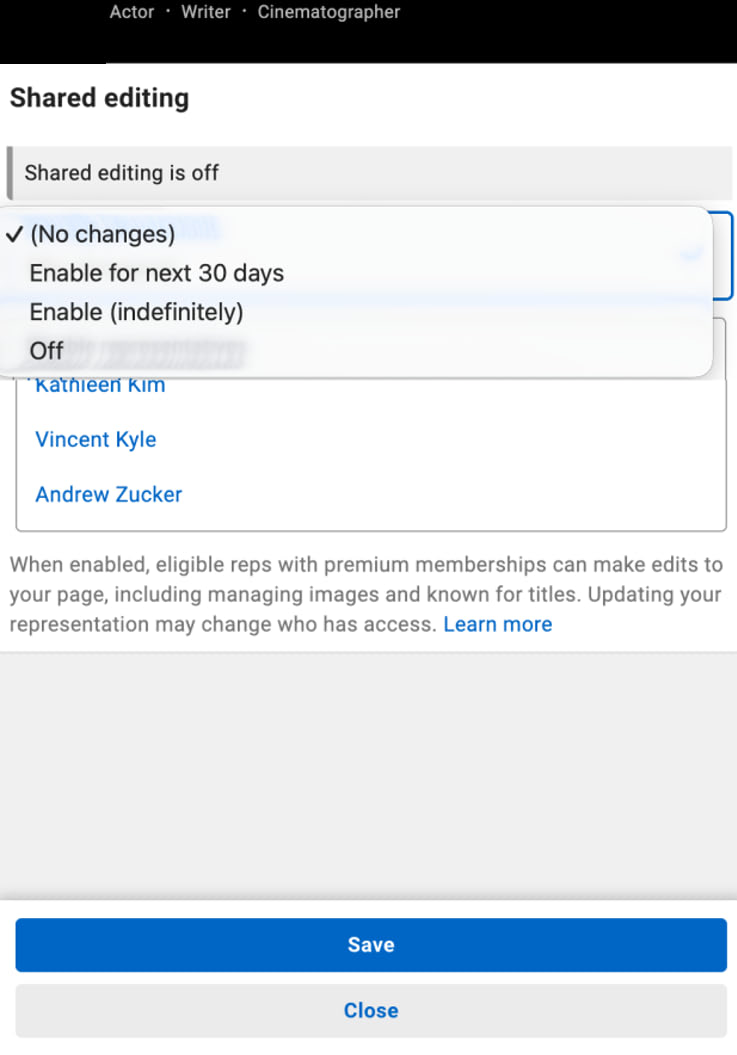
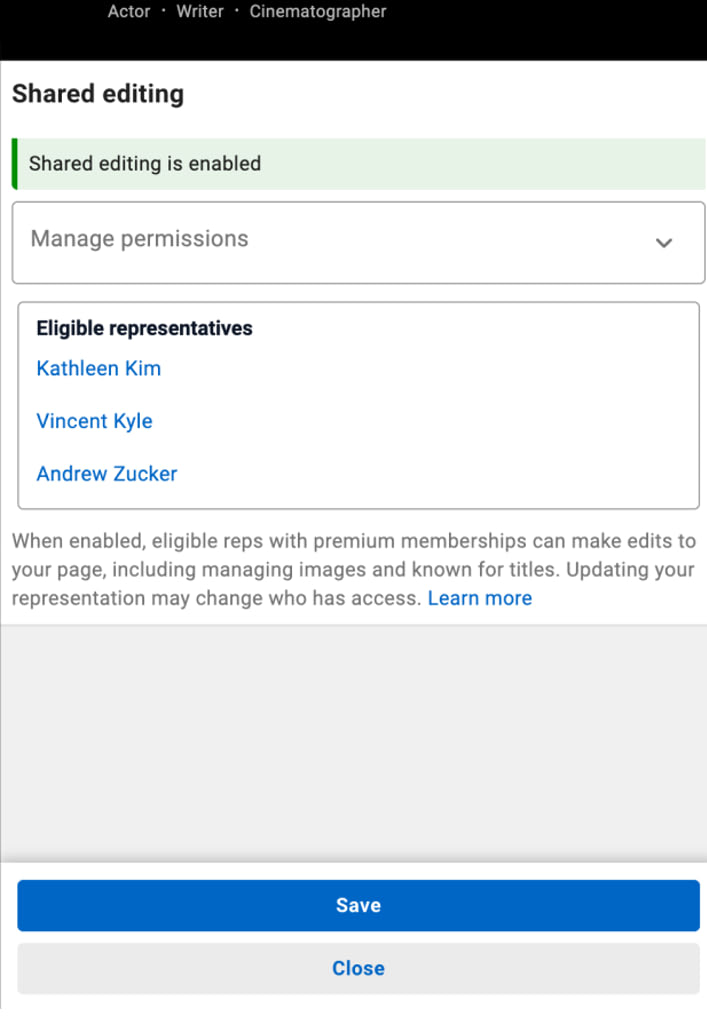
When you turn on Shared Editing, all representatives with IMDbPro Premium memberships listed in your Contacts can immediately use editing tools on your page. You don't need to grant access to each representative individually.
To review who has access, check the Contacts section of your page. Any representative listed there with an IMDbPro Premium membership will have editing access when Shared Editing is on.
Do I need to be an IMDbPro member in order to use shared editing?
Yes. You will need to have an active IMDbPro Premium membership in order to use shared editing to manage your client's page.
Does my client need to be an IMDbPro member in order for me to use shared editing?
Yes. Your client will need to have an active IMDbPro Premium membership in order for you to use shared editing to manage their page.
Is there a limit to the number of pages that I can co-manage via shared editing?
No. You can enable shared editing permissions for all of your clients if you would like, as long as you’re listed as their verified representative in IMDbPro and your clients grant you shared editing permissions.
As a client, is there a limit to the number of representatives that I can manage my page via shared editing?
There's no limit. When you turned on Shared Editing, all representatives with IMDbPro Premium memberships listed in your Contacts can edit your page. You don't need to manage access individually.
Can I enable shared editing for someone I do not represent?
No. Shared Editing only applies to representatives listed in your Contacts on IMDbPro.
Can I delegate shared editing access for someone else to help co-manage my client’s page?
No. To have Shared Editing access, a person must have an active IMDbPro Premium membership and be listed as a representative in the client's Contacts.
If my client cancels their IMDbPro membership, are the edits that I made to my client's page removed?
Yes. If your client's page is no longer claimed or their IMDbPro Premium membership expires, you will receive an email notification informing you that their page is no longer claimed and shared editing permissions have been removed. Any edits you made to your client's images and Known for titles, along with the edits your client made to those items via their IMDbPro Premium membership, will be removed from the page.
If I cancel my membership, are the edits that I made to my client's page removed?
No. As long as your client has an active IMDbPro Premium membership and has claimed their name page your edits to their images and Known for titles will remain on your client’s page.
If I cancel my membership and then renew, do I automatically get my shared editing permissions re-enabled?
If you're a representative: When you renew your IMDbPro Premium membership, your editing access is automatically restored for any client who has Shared Editing turned on - no new request is needed.
If you're a client (Name page owner): Your Shared Editing setting is preserved. When you renew, your previous setting (on, temporary, or off) remains in place.
Can I upload and manage demo reels for my client?
No. At this time, demo reels can only be uploaded and managed by the IMDbPro Premium membership claiming a page; demo reels cannot be uploaded or managed via shared editing.
Can I access shared editing via the IMDbPro mobile website or IMDbPro app?
Shared Editing settings and page editing tools are available on the IMDbPro desktop website. Mobile access is not currently available.
Will I still have access to Client Scorecard?
Client List Management tools, including shared editing, has now replaced the Client Scorecard feature - these will provide an updated and improved way to manage your client list moving forward.