- New & Updated Professions
- Claim your page
- Manage your page controls
- Manage your images
- Manage your videos
- Manage your filmography
- Manage your professions
- How do I remove my age / birthyear?
- Manage your personal details
- Manage your performer profile & credentials
- Setting your vanity URL & other external websites
- Manage your Client List with Shared Editing
- Where and how will my Featured Images be displayed?
- Who is using my name on IMDb?
- Verified affiliations on IMDbPro
Manage your videos
Updated 15-April-2026
Access to these features require an IMDbPro Premium Subscription. Learn more on the IMDbPro Subscription comparison page.
This article provides answers to the most common questions regarding managing videos with your IMDbPro membership.If you're unable to find your answer here, simply reach out to a member of our support team by using out contact form.
Ready to get started?

Frequently asked questions
How do I upload a demo reel to my IMDb page?
IMDbPro members can upload demo reels to their IMDb page to showcase their talents and previous work. Please take the following steps to upload your demo reel:
1. Select your name from the main IMDbPro homepage to navigate to your IMDbPro page

2. On your IMDbPro page, go to the Videos tab, click + Add where you will be taken to the video upload page

3. Click Browse and select your video, ensuring it fits within the Recommended Video Settings
4. Add the Video Title and select the Maturity Level of the video
5. Once this required information has been provided, click the yellow "Upload" button to begin uploading your demo reel
It may take up to 24 hours for the video to appear on your page. Your demo reel will be visible on both IMDb and IMDbPro across all devices. IMDbPro members can upload an unlimited number of demo reels to their IMDb page. To edit or remove demo reels you previously uploaded, please go to Your Videos page.
Can I change the video appearing next to my headshot on my page?
The video appearing next to your name is called the Primary video and by default is chosen automatically by a pre-defined logic. As an IMDbPro Premium member, you can select your own primary video to display the content that best represents you and your work. Videos tagged as Mature can't be used in this slot.
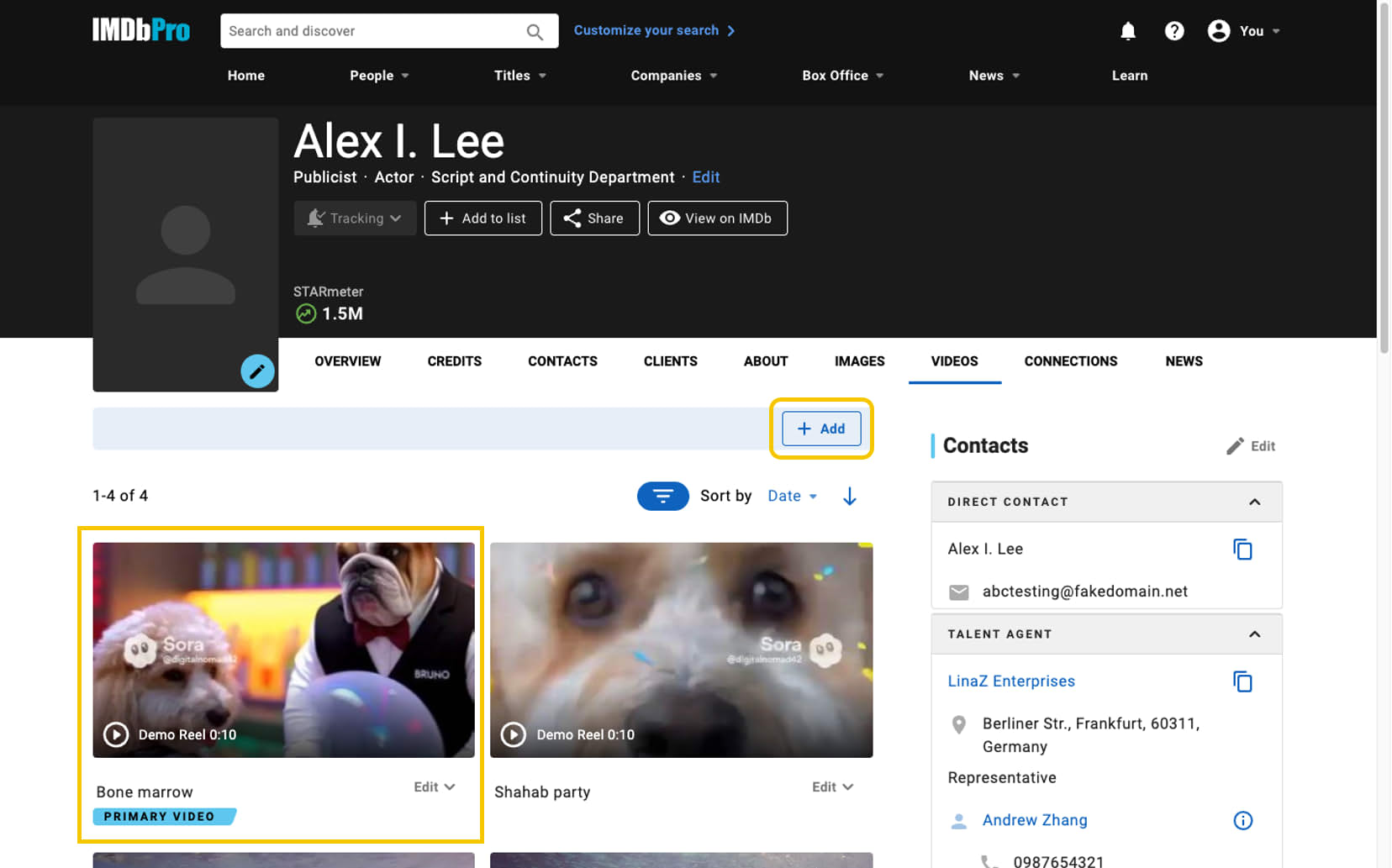
On desktop (IMDbPro.com)
- Go to your IMDbPro name page and select the Videos tab to open your Video Gallery.
- Add or find the video you'd like to set as your primary video.
- Click the Edit dropdown next to that video.
- Select Set as primary.
- The video you selected will show a "Primary Video" label. Your updated primary video will appear on IMDb sites, apps, and services within 24 hours.
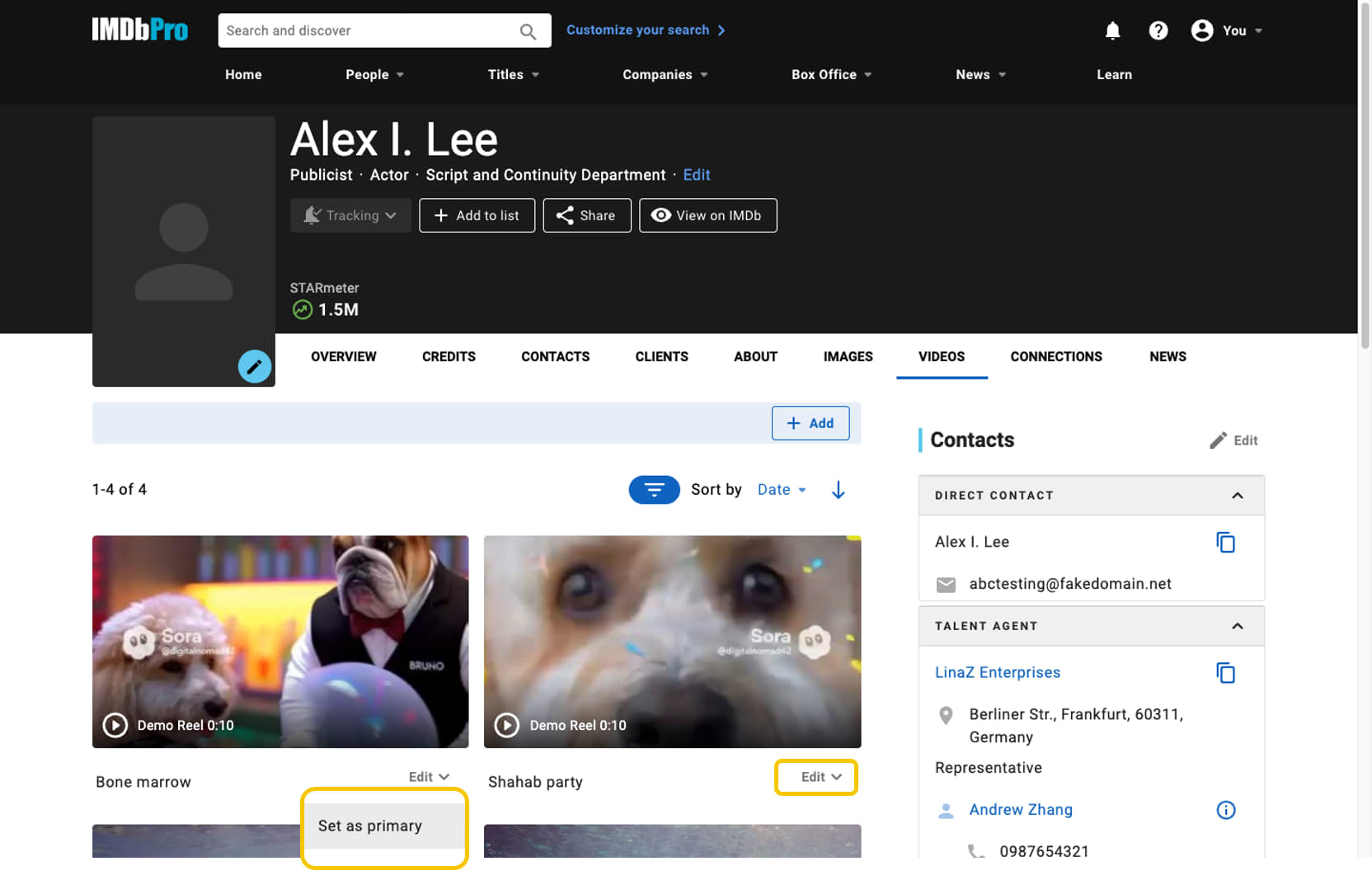
To revert to the IMDb default
If you'd like to to let IMDb choose your primary video again:
- In your Video Gallery, find your current primary video (the one with the "Primary Video" label).
- Click the Edit dropdown next to that video.
- Select Revert primary to default.
- The default video will be restored on IMDb sites, apps and services within 24 hours.
On the IMDbPro app
- Tap the photo icon in the upper-right corner of the app and choose Your Page.
- Select the Videos tab.
- Select the Edit videos link on the right-hand side.
- On the Edit page panel, select Videos under the Page Sections category.
- On the Videos panel, click Primary video and select Use your choice.
- Choose the video you want as your primary video.
- Select Save to publish the change.
Only IMDbPro Premium members can change their primary video.
Can I remove my demo reel?
Demo reels uploaded from your IMDbPro membership can be removed from the Your Videos page.
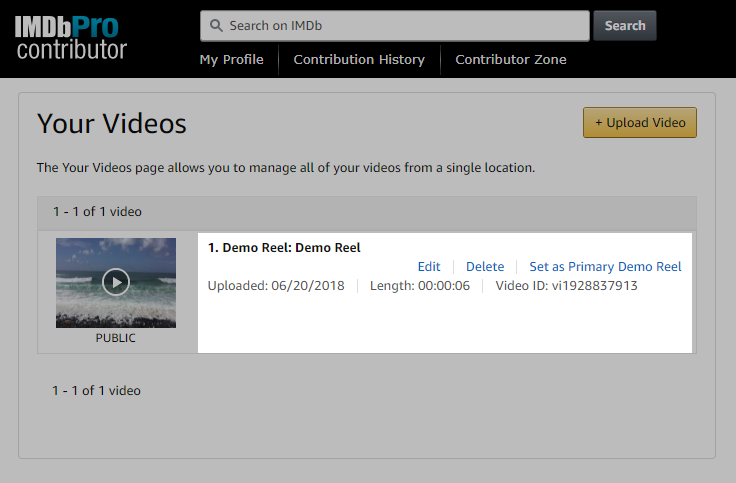
This page will show all video content that has been uploaded via your IMDb account. To delete your video, click Delete to the right of the demo reel and click Delete in the pop up window to confirm the change. The video should be removed from your page within 24 hours.
If the demo reel does not appear on the Your Videos page, it means it was added with a previous account and can't be removed on your end.
For more assistance, please visit our Contact Us page while logged into your IMDbPro account and select IMDbPro member > Claim your IMDb Page (if you are logged out of your IMDbPro account, please select IMDbPro member > Membership Benefits & Pro tips), then select "Email" and let us know how we can help.
For more information on how to get the most of your IMDbPro membership, please see our Pro Tips.
There is an incorrect video assigned to a Title or Name page. How do I report this?
Titles and videos are automatically matched by our software. This is usually accurate in 99% of cases, but mistakes are always possible, particularly when two films have the same (or very similar) titles. If you have found a video linked to the incorrect title/name or a video missing a link to a title/name, please report this to our staff using then following the instructions:
Visit the Contact Us page while logged into your IMDb/IMDbPro account and select IMDb Contributor > I need help and haven't submitted an update > Images & video > Remove/update videos then select "Email" and let us know how we can help.
What video formats do you accept?
We recommend the following settings to optimize video quality on the IMDb site:
- File Format: MP4, WMV, AVI or Quicktime
- Codec: H.264 / AAC, or WMV3 / AAC
- Resolution: 640x480 for SD, 1280x720 for HD
- FPS: 30 frames per second
- Video Bitrate: 2000 kbits/sec for SD 4:3, 5000 kbits/sec for HD
- Audio: 320 kbps / 44.100 kHz
- Deinterlacing: On
- Size: Up to 500 MB
- Length: 10 minutes or less
Depending on the software you're using, some of these options may only be available under the "advanced" settings.
These are recommendations - other formats may work. If you have video that has already been compressed to another format, you may want to try uploading it as-is before re-encoding to these formats.
Does IMDbPro allow professional members to post headshots, videos, etc. that have been generated by AI?
While IMDbPro accepts AI-enhanced personal images of professionals (such as those using photo filters), we do not allow fully AI-generated profile photos or AI-generated representations of individuals. This helps maintain trust among industry customers who use IMDbPro for casting and other professional purposes.
Do you support 16:9 / widescreen format? Or do I have to reformat to letterbox 4:3 before uploading?
Both 16:9 and 4:3 formats are supported. For HD video, we suggest the 16:9 widescreen format for the best quality at 720p and 480p.
Note that 16:9 video will be letterboxed when shown in the lower-resolution "standard" view.
Can I upload a trailer/clip and link it to my title instead of just to my IMDb page?
At present, demo reels can only be linked to the IMDb page you have claimed through the IMDbPro membership. Demo reels uploaded by an IMDbPro account will show up as related video on the IMDb page associated with that Pro account.
Someone else already claimed my Name page, can I upload a demo reel to that IMDb page?
Only an IMDbPro membership that has claimed a page may add demo reels to that page. If a representative has claimed your page on your behalf, they will need to upload the video using the IMDbPro membership they used to claim your IMDb page.
What happens to my demo reel if I cancel my membership?
Any demo reels that you've uploaded will be removed from the site when you cancel your membership. Note that any videos in which you are tagged (trailers, clips, interviews, etc.) will continue to be displayed on the site even after you’ve cancelled. If you renew your IMDbPro membership in the future, your previously uploaded demo reels will be restored to your page within 24 hours.
For additional info, please see: What happens when I cancel my IMDbPro membership?
My demo reels contain clips from movies. Do I need to get permission from the director?
All uploaded content must comply with the IMDbPro Subscriber Agreement and Copyright Information.
Can I have audio-only demo reels instead of video?
At present, only video demo reels can be uploaded. If you have an audio-only reel such as a voiceover demo, we suggest creating a video clip that uses that reel as the associated audio, and an appropriate title or image as the video.